> ## Documentation Index
> Fetch the complete documentation index at: https://docs.testdriver.ai/llms.txt
> Use this file to discover all available pages before exploring further.
# Tauri Apps
> Testing Tauri Apps with TestDriver
> [Tauri](https://tauri.app/) is a framework for building tiny, fast binaries for all major desktop and mobile platforms. Developers can integrate any frontend framework that compiles to HTML, JavaScript, and CSS for building their user experience while leveraging languages such as Rust, Swift, and Kotlin for backend logic when needed.
>
> \
> – [https://tauri.app/start](https://tauri.app/start/)
## Testing Tauri apps with TestDriver
In this guide, we'll leverage [Playwright](https://playwright.dev/) and the [TestDriver Playwright SDK](/getting-started/playwright) to convert the [Tauri Quick Start](https://tauri.app/start/create-project/) to TestDriver's selectorless, Vision AI.
View Source: [https://github.com/testdriverai/demo-tauri-app](https://github.com/testdriverai/demo-tauri-app)
### Requirements
To start testing your Tauri app with TestDriver, you need the following:
You will need a [Free TestDriver Account](https://app.testdriver.ai/team) to get an API key.
Copy your API key from [your TestDriver dashboard](https://app.testdriver.ai/team), and set it as an environment variable.
Export an environment variable on macOS or Linux systems:
```bash theme={null}
export TD_API_KEY="your_api_key_here"
```
Export an environment variable in PowerShell:
```powershell theme={null}
setx TD_API_KEY "your_api_key_here"
```
Follow Tauri's [Create a Project](https://tauri.app/start/create-project/)
guide.
This is a condensed version of [Playwright's Installation Instructions](https://playwright.dev/docs/intro).
**If you're new to Playwright, you should follow their guide first.**
In your Tauri project, run:
```bash theme={null}
npm init playwright@latest
```
```bash theme={null}
yarn create playwright
```
```bash theme={null}
pnpm create playwright
```
Select the following options when prompted:
```console theme={null}
✔ Do you want to use TypeScript or JavaScript?
> TypeScript
✔ Where to put your end-to-end tests?
> tests
✔ Add a GitHub Actions workflow? (y/N)
> N
✔ Install Playwright browsers (can be done manually via 'npx playwright install')? (Y/n)
> Y
```
`@testdriver.ai/playwright` is an AI-powered extension of `@playwright/test`.
```bash theme={null}
npm install @testdriver.ai/playwright
```
```bash theme={null}
yarn add @testdriver.ai/playwright
```
```bash theme={null}
pnpm add @testdriver.ai/playwright
```
## Testing the Tauri Web App
### Setup
First, we need to modify the default Playwright configuration and our Tauri project to work together:
In the `playwright.config.ts` file, we'll configure the [`webServer`](https://playwright.dev/docs/test-webserver)
to start the Tauri frontend for Playwright to test against:
```typescript playwright.config.ts theme={null}
/* Run your local dev server before starting the tests */
// [!code ++:8]
webServer: {
command: "npm run dev",
url: "http://localhost:1420",
reuseExistingServer: !process.env.CI,
env: {
VITE_PLAYWRIGHT: "true",
},
},
});
```
Since we're testing the Tauri frontend, we need to [mock IPC Requests](https://tauri.app/develop/tests/mocking/)
to simulate `invoke` calls to the Rust backend:
```html src/index.html theme={null}
```
We only need to do this once, as we'll be accessing `window.mockIPC` in our tests.
Create a new file (e.g. `tests/testdriver.spec.ts`) with:
```typescript tests/testdriver.spec.ts theme={null}
import type { mockIPC } from "@tauri-apps/api/mocks";
import { expect, test } from "@playwright/test";
test.beforeEach(async ({ page }) => {
await page.goto("http://localhost:1420");
});
test("should have title", async ({ page }) => {
await expect(page).toHaveTitle("Tauri + React + TypeScript");
});
```
Now we're ready to run Playwright and start working on our tests:
```bash theme={null}
npx playwright test --ui
```
```bash theme={null}
yarn playwright test --ui
```
```bash theme={null}
pnpm exec playwright test --ui
```
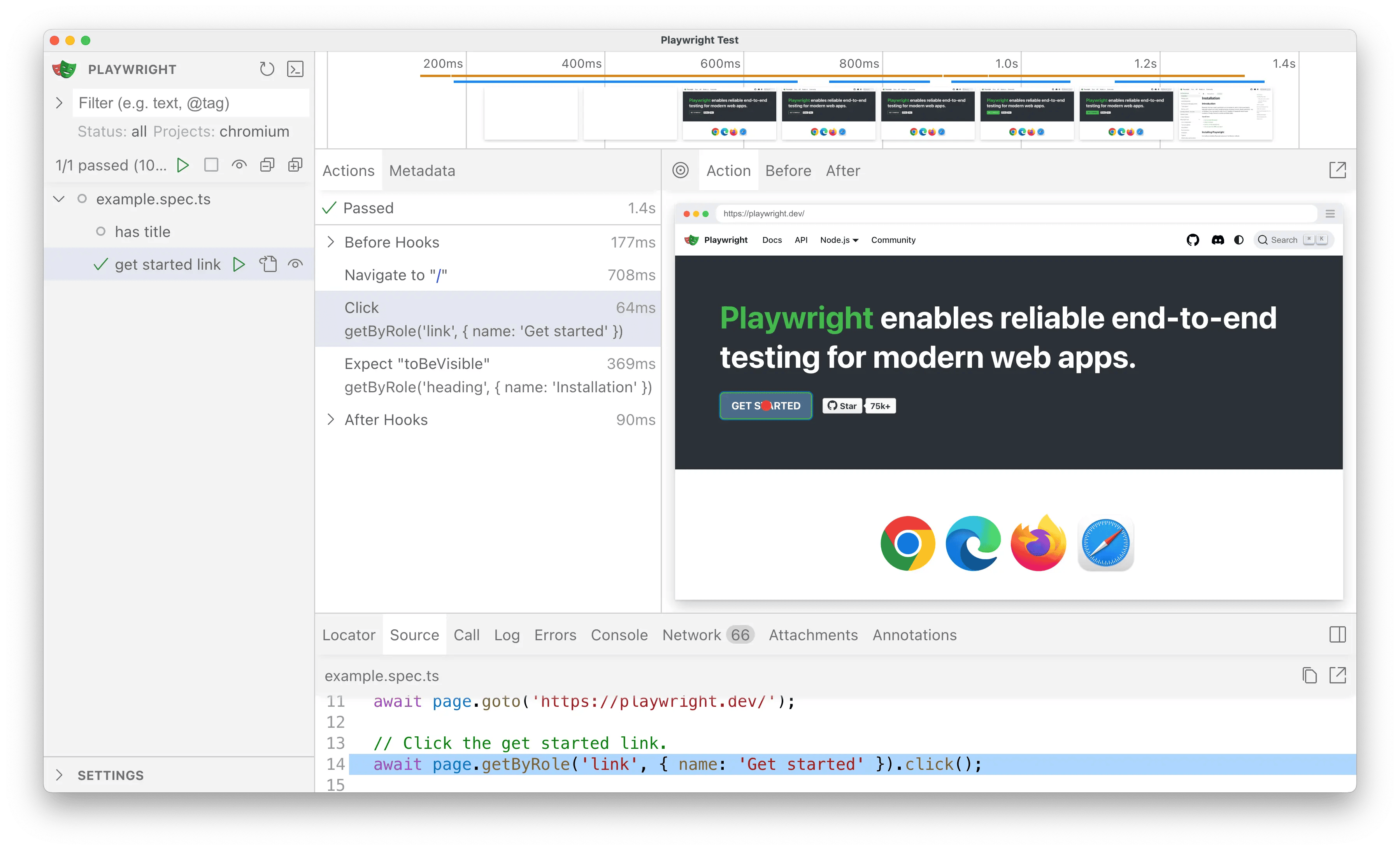
Click the button to successfully run the tests in the UI.
Click the button to automatically re-run tests on save.
### Usage
#### Import the TestDriver Playwright SDK
By changing **1 line**, we can add TestDriver's AI capabilities to Playwright:
```typescript tests/testdriver.spec.ts theme={null}
import type { mockIPC } from "@tauri-apps/api/mocks";
// [!code --]
import { expect, test } from "@playwright/test";
// [!code ++]
import { expect, test } from "@testdriver.ai/playwright";
// For type-safety of the mockIPC function
declare global {
interface Window {
mockIPC: typeof mockIPC;
}
}
test.beforeEach(async ({ page }) => {
await page.goto("http://localhost:1420");
});
test("should have title", async ({ page }) => {
await expect(page).toHaveTitle("Tauri + React + TypeScript");
});
```
Notice how we're able to continue using Playwright's API (`toHaveTitle`)
with `@testdriver.ai/playwright`.
The test continues to pass as before, so now we can update our test to use natural language instead of selectors.
#### Assertions with `expect.toMatchPrompt`
With Playwright, we would normally use a `getByRole` selector to assert the heading text:
```typescript tests/example.spec.ts theme={null}
test("should have heading", async ({ page }) => {
await expect(
page.getByRole("heading", { name: "Installation" }),
).toBeVisible();
});
```
With TestDriver, we can use natural language with `toMatchPrompt` instead:
```typescript tests/testdriver.spec.ts theme={null}
test("should have heading", async ({ page }) => {
// [!code --:3]
await expect(
page.getByRole("heading", { name: "Installation" }),
).toBeVisible();
// [!code ++:1]
await expect(page).toMatchPrompt("Heading says 'Welcome to Tauri + React'");
});
```
#### Agentic tests with `test.agent`
With TestDriver, we can skip the test implementation **entirely** and let AI perform the test for us:
First, we need to [`mock our invoke calls`](https://tauri.app/develop/tests/mocking/#ipc-requests),
since we're testing the frontend behavior and not our Tauri backend:
```typescript tests/testdriver.spec.ts theme={null}
test.beforeEach(async ({ page }) => {
await page.goto("http://localhost:1420");
// [!code ++:12]
await page.evaluate(() => {
// https://tauri.app/develop/tests/mocking/#mocking-commands-for-invoke
window.mockIPC((cmd, args) => {
switch (cmd) {
case "greet":
args = args as { name: string };
return `Hello, ${args.name}! You've been greeted from Rust!`;
default:
throw new Error(`Unsupported command: ${cmd}`);
}
});
});
});
```
Next, wrap a *prompt* in `test.agent` to perform the test:
```typescript tests/testdriver.spec.ts theme={null}
test.describe("should greet with name", () => {
test.agent(`
- Enter the name "Tauri"
- Click the "Greet" button
- You should see the text "Hello, Tauri! You've been greeted from Rust!"
`);
});
```
#### Continued Reading
[Learn more about TestDriver's Playwright SDK](/getting-started/playwright)
## Testing the Tauri Desktop App
We can use TestDriver and natural language to test our Tauri desktop app:
`bash npm run tauri dev `
`bash yarn tauri dev `
`bash pnpm tauri dev `
See [Desktop Apps](/apps/desktop-apps) for more information.
## Testing the Tauri Mobile App
We can use TestDriver and natural language to test our Tauri iOS app:
`bash npm run tauri ios dev `
`bash yarn tauri ios dev `
`bash pnpm tauri ios dev `
See [Mobile Apps](/apps/mobile-apps) for more information.